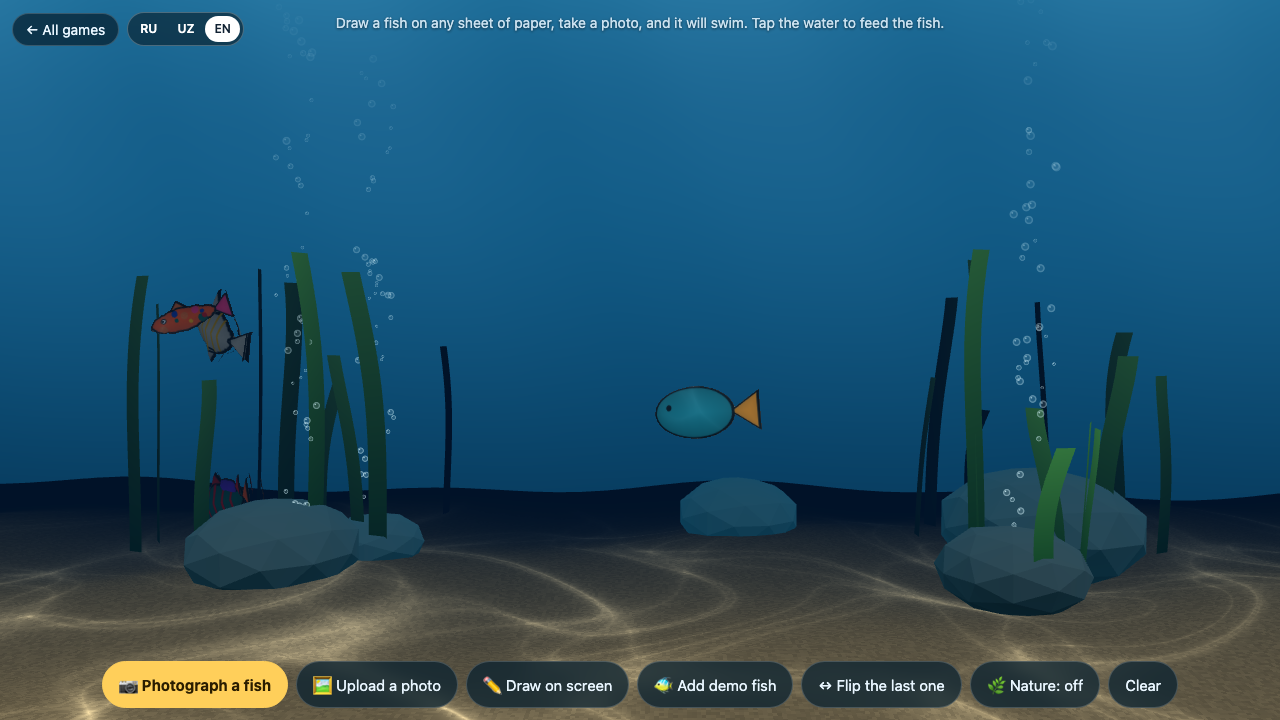
Paper Aquarium: Bring Kids’ Drawings to Life
Version 2.10 — Updated October 2026
Turn a paper fish into a swimming aquarium character. Follow the upload steps, fix common picture problems and try a shared family drawing activity.
A fish does not have to stay on the fridge after your child draws it. Paper Aquarium turns a picture into a fish in a browser aquarium. Start with one drawing, help it swim in the right direction, then decide together what the next creature should look like.
The activity is free and requires no account. It works as an interactive drawing toy: your child makes the picture, then uses the aquarium to play with it. You do not need a chatbot subscription or a prompt-writing lesson.
Set up your first fish
| Bring | Why it helps |
|---|---|
| Plain paper and a dark marker | A clear outline is easier to separate from the background. |
| Colouring materials | Give the fish recognisable colours or patterns. |
| A phone, tablet or computer | Open the aquarium in a browser. |
| A photo of the drawing, or a camera | Use the upload or photograph option. |
Open the aquarium. Choose EN if you want the English controls. To see the idea before preparing a picture, select Add demo fish. The sample fish is useful for explaining the task, but your child's own drawing is the main event.
Let an adult handle the photo and browser controls when needed. Keep the first drawing simple enough that your child can recognise it immediately on screen.
Draw, photograph and add it
- Draw a large fish. Use roughly half a sheet. Make the head and tail distinct and close large gaps in the outline. Leave the background plain.
- Take a clear picture. Put the paper in good light and photograph it from above. Frame the artwork rather than faces, names or the room around it.
- Choose Upload a photo. Select the saved image. You can also use Photograph a fish to take a picture through the browser; that route asks for camera access.
- Look for your fish in the aquarium. Ask your child which colours and shapes make it recognisable.
- Fix the direction if necessary. If it appears to swim tail-first, use Flip the last one after adding it.
There is also Draw on screen for families who want to try the idea without taking a photograph. For a paper activity, leave the markers on the table so the child can return to drawing after seeing the first result.
Make a shared aquarium
Once one fish is swimming, ask your child to choose the next addition. Would they like a striped fish, a round fish or a creature with a very different tail? Let them make that choice before returning to the screen.
Each family member can contribute one drawing. You can give the creatures names aloud and tell a short story about where they live. No names need to be written on the uploaded picture.
Tap the water to feed the fish. If you want to explore the extra ecosystem behaviour, try the Nature control after your child is comfortable with the basic aquarium. Keep the drawing and conversation at the centre of the activity; there is no need to add every available feature in one sitting.
When a picture does not look right
| What you notice | What to try |
|---|---|
| Parts of the fish are missing | Strengthen the outline and close large gaps, then take another photo. |
| Too much background appears | Use plain paper, improve the light and photograph from directly above. |
| The fish swims backwards | Select Flip the last one before adding another fish. |
| Camera access is inconvenient | Take a photo normally and use Upload a photo instead. |
| A younger child gets stuck | Let the child draw while an adult handles the browser. |
The project's own tips and FAQ explain the drawing and camera setup. The creator says photos and camera images are processed on the device and fish are stored in that browser. Use the same browser when returning to the aquarium; Clear removes its fish.
Where to go next
Stop when your child has a drawing they want to show someone. Ask them to point out one choice they made: the shape, colour, tail or expression. That gives the screen activity a connection back to their own work.
See our Paper Aquarium resource page for the entry point and parent notes. For another activity that keeps the artwork on paper, try the Little Line Studio drawing guide. Both resources can be used without a KidsAiTools membership.
📋 Editorial Statement
Written by the KidsAiTools Editorial Team and reviewed by Felix. Our guides are written from a parent-builder perspective and focus on AI literacy, age fit, pricing transparency, and practical family use. We do not currently claim named external expert review or a child-test panel. We may earn commissions through referral links, which does not influence our reviews.
If you find any errors, please contact support@kidsaitools.com. We will verify and correct as soon as we can.
Last verified: October 29, 2026